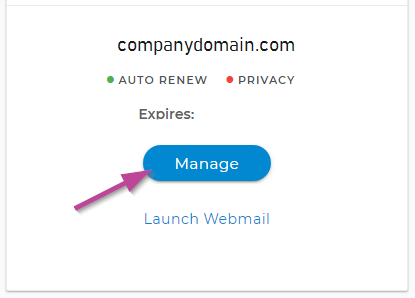
- Login to your Domain.com account and select “Manage” on the domain where you will be adding a new record.
- If the view is set to “card view”, click on the blue Manage button
- If the view is set to “List view”, click on the Gear icon under Manage

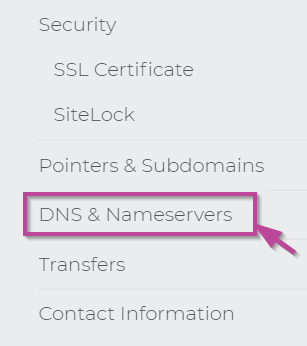
- Select the DNS & Nameservers tab on the left-hand menu.
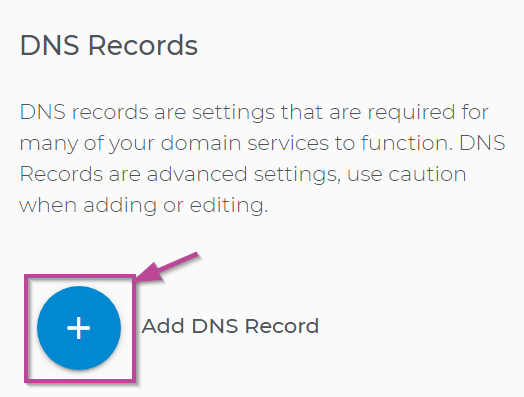
- To add a new A Record, click the blue + button.
- If you’re A record is already created, simply choose an A record from the list to edit then, select the three dots on the record you wish to edit or delete.
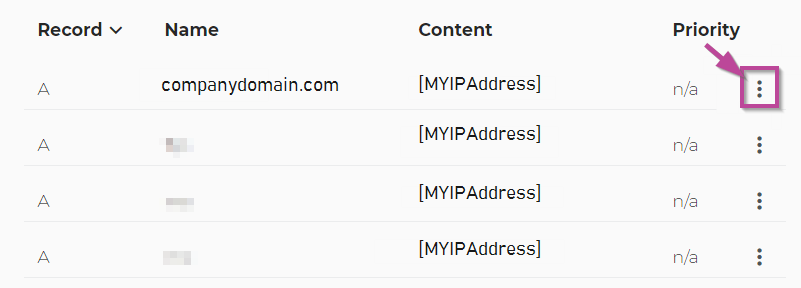
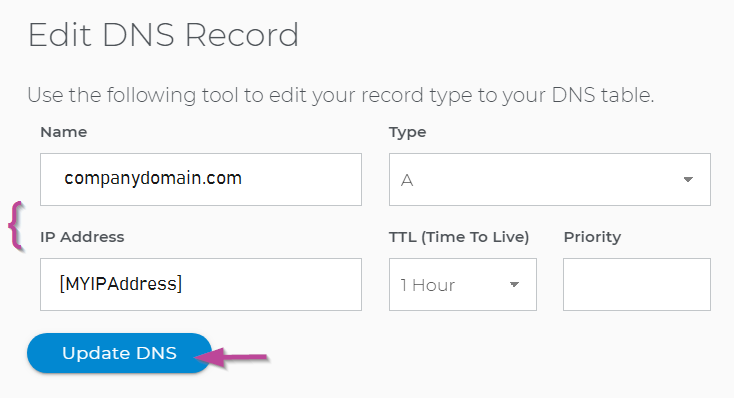
- Under Edit DNS Record make your revisions and Click on Update DNS when finished. (Verify that A is selected for Type & use IP Address provided in the business activation email)